
Fake Cloudflare Verification: How a ClickFix Attack Tried to Steal My Mac Password
Introduction: A Routine Website Visit That Turned Suspicious
Today, I encountered a cybersecurity attack that reminded me just how effective social engineering can be, even without exploiting a software vulnerability.
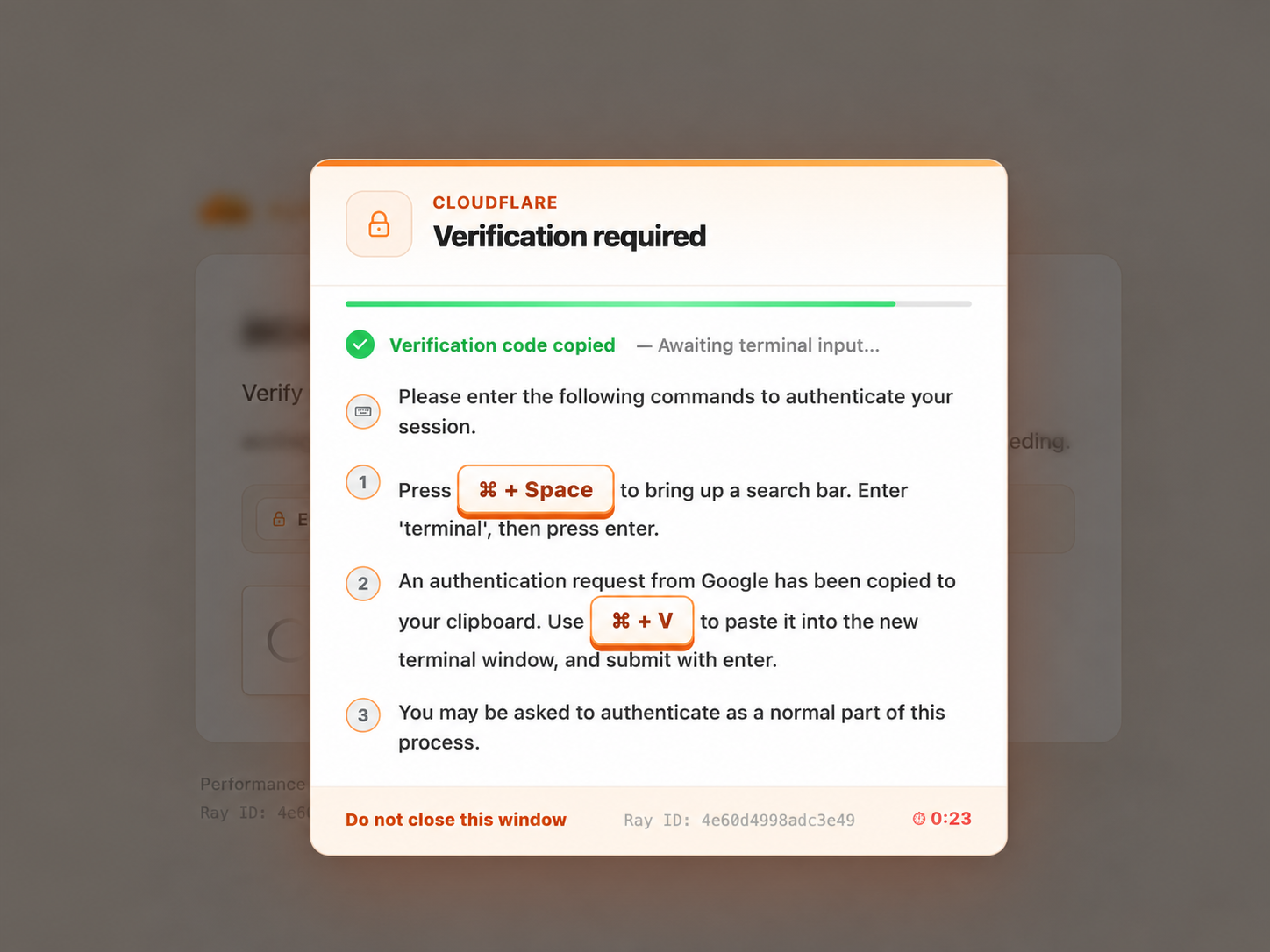
I was trying to access a major business directory through what appeared to be a legitimate website. As the page loaded, a Cloudflare verification pop-up appeared, asking me to complete a security check before proceeding.
Nothing seemed particularly unusual at first. Many websites use Cloudflare to protect themselves against automated traffic, bots, and malicious requests. As someone who works in IT and cybersecurity, I encounter these verification pages regularly.
However, this particular verification was different.
Instead of asking me to tick a checkbox or solve a CAPTCHA, the webpage instructed me to perform several actions directly on my computer.
What initially seemed like a routine browser security check turned out to be a social engineering attack designed to steal sensitive information from my Mac.
The technique is known as ClickFix, and it is something every computer user should understand.
The Encounter: A Fake Cloudflare Verification
The verification pop-up displayed instructions that appeared simple enough for an unsuspecting user to follow.
It asked me to:
Press Command + Space on my Mac.
Search for and open Terminal.
Paste a command that had already been copied to my clipboard.
Press Enter to complete the verification.
That immediately raised my suspicion.
Why would a website verification process require access to my computer's command-line interface?
Cloudflare's legitimate browser verification mechanisms do not require users to execute Terminal commands.
I suspected that the webpage was attempting to trick me into running malicious code.
Rather than proceeding on my primary computer, I decided to investigate the behaviour using a secondary Mac.
Important: Executing suspicious commands carries significant risk, even on a secondary device. Proper malware analysis should be conducted in a controlled, isolated environment with appropriate safeguards. This is not something I recommend ordinary users attempt.
I deliberately executed the command to examine what would happen.
Shortly afterward, a prompt appeared requesting my Mac login password.
That was another major red flag.
I clicked Cancel without entering my password.
The next question was obvious: What exactly had the command attempted to do?
Investigating the Malicious Command
I examined the command and the script it was designed to retrieve.
My analysis revealed a sequence of activities intended to compromise the computer.
1. Download a malicious script
The command was designed to contact an external server and retrieve a script. This is a common technique in malware delivery, where a seemingly simple command initiates a much larger attack.
2. Display a fake macOS password prompt
The script attempted to display a password request that resembled a legitimate macOS system dialog.
This was particularly deceptive because macOS users are accustomed to authentication prompts when installing applications or changing system settings.
However, a prompt that looks legitimate is not necessarily trustworthy.
3. Capture the user's login password
The apparent objective was to convince the victim to enter their Mac login password into the fraudulent prompt.
If successful, the attacker could obtain credentials that might provide access to additional sensitive resources.
4. Attempt to access the macOS Keychain
The script also contained instructions intended to access Keychain data.
Apple's Keychain stores sensitive information, including passwords, certificates, and authentication-related secrets. Access depends on the relevant permissions and security controls, but a compromised login password can significantly increase the risk.
5. Download additional information-stealing malware
The script was also designed to retrieve and execute another malicious component.
This second-stage payload could potentially steal browser information, saved credentials, session data, or other sensitive files, depending on its capabilities.
What Happened After I Cancelled?
Interestingly, the script appeared to be programmed to terminate if the requested password was not provided.
After cancelling the prompt, I carried out additional checks and found no evidence that the second-stage malware had been downloaded or executed.
That was encouraging, but it did not automatically establish that the system was completely safe.
The initial command had already executed, meaning some activity had occurred before the password request appeared.
This distinction matters in cybersecurity investigations: not observing a successful compromise is different from proving that no compromise occurred.
What Is a ClickFix Attack?
ClickFix is a social engineering technique in which attackers persuade users to execute malicious commands on their own computers, usually under the pretence of fixing a problem or completing a security verification.
The attack often begins with a familiar-looking webpage displaying messages such as:
Verify that you are human.
Complete this security check to continue.
Fix a browser verification error.
Run this command to resolve a technical issue.
Rather than exploiting a technical vulnerability directly, the attacker convinces the victim to perform an action that enables malicious code execution.
Microsoft Threat Intelligence has documented ClickFix campaigns targeting both Windows and macOS users, frequently using fake CAPTCHA pages, compromised websites, and malicious advertisements.
This makes the technique particularly dangerous because it exploits something that conventional security tools cannot always prevent: a user's decision to trust and follow instructions.
How a ClickFix Attack Works
Although implementations vary, the attack generally follows five stages.
Stage 1: Exposure
A user encounters a malicious webpage through a compromised website, phishing message, search result, or deceptive advertisement.
The page may appear legitimate, especially when it impersonates an established security provider.
Stage 2: Fake verification
The website displays a convincing CAPTCHA or Cloudflare-style security challenge.
The branding is intended to make the instructions appear routine and trustworthy.
Stage 3: Clipboard manipulation
The page may copy a malicious command to the user's clipboard, sometimes after the user clicks a verification button.
The user is then instructed to paste it into Terminal, PowerShell, or another command-execution interface.
Stage 4: Malicious execution
Once the user runs the command, the operating system may execute scripts, connect to attacker-controlled servers, or download additional software.
Because the user initiates the action, some conventional security controls may struggle to distinguish malicious activity from legitimate administration.
Stage 5: Credential theft or further compromise
Depending on the payload, the attacker may attempt to steal credentials, browser cookies, cryptocurrency wallet information, or sensitive documents.
Some campaigns also deploy remote-access tools or establish persistence, allowing malicious activity to continue after the initial execution.
Not every ClickFix attack follows precisely the same sequence, but the underlying deception remains consistent.
Why This Attack Is Particularly Dangerous
What makes ClickFix effective is not necessarily technical sophistication. It is the credibility of its presentation.
Users have become accustomed to websites asking them to verify their identity, confirm that they are human, or resolve browser errors.
Attackers exploit that familiarity.
The fake Cloudflare page I encountered relied on three factors.
Familiar branding: Cloudflare is widely recognised as a legitimate website security provider. Using its appearance makes a malicious page less suspicious.
Simple instructions: The requested steps were easy to follow, even for users with limited technical experience.
An apparent need to proceed: The verification appeared to be standing between me and the website content I wanted to access.
There is also an important distinction between a malicious website and a compromised legitimate website.
An established website can expose visitors to malicious content if its infrastructure, advertisements, or third-party integrations are compromised.
Therefore, recognizing the website's name alone is not sufficient protection.
How to Recognize a Fake Verification Page
Here are some warning signs that should immediately raise suspicion.
A website asks you to open Terminal or PowerShell. Legitimate browser verification does not require users to execute operating-system commands.
A command is automatically placed on your clipboard. Be suspicious when a website instructs you to paste content you have not independently examined.
A verification process requests your computer password. Browser CAPTCHAs should not require your local operating-system credentials.
The webpage applies pressure to complete unusual steps. Instructions that insist you must perform unfamiliar actions before continuing deserve additional scrutiny.
The security process looks familiar but behaves differently. A trusted logo does not guarantee that the content displaying it is authentic.
If you encounter these signs, close the page rather than following the instructions.
What to Do If You Have Already Executed a Suspicious Command
If you accidentally execute a command from a suspicious website, take the incident seriously, even if nothing unusual appears to happen.
1. Disconnect the affected device
Disconnecting from the network can help interrupt ongoing communication with malicious infrastructure. For managed business devices, follow your organization's incident response procedures.
2. Report the incident
If the computer belongs to your employer, notify your IT or cybersecurity team immediately.
Provide the website address, approximate time of execution, and any available screenshots.
3. Investigate the device
Check for suspicious processes, unfamiliar files, unexpected applications, and persistence mechanisms.
On macOS, relevant areas may include Login Items, LaunchAgents, and LaunchDaemons.
A qualified security professional should assess the execution history and available endpoint telemetry.
4. Run trusted security scans
Use reputable endpoint security software to identify known malicious components.
Remember that a clean scan does not conclusively rule out compromise.
5. Protect your credentials
From a separate, trusted device, change passwords that may have been exposed.
Prioritise email accounts, password managers, financial services, and business systems. Revoke suspicious sessions where supported.
6. Consider rebuilding the device
Where sensitive credentials may have been exposed or system integrity cannot be established, a clean operating-system reinstallation may be the safest recovery option.
What Organizations Can Learn from ClickFix
This incident also highlights an important challenge for businesses.
Organizations invest in antivirus software, firewalls, endpoint protection, and access controls. These remain essential, but technical defences alone cannot eliminate social engineering risks.
Employees routinely access websites, open documents, follow instructions, and troubleshoot computer problems.
Attackers increasingly exploit these ordinary work activities.
Organizations should therefore combine technical controls with practical cybersecurity awareness.
Training should help employees recognise suspicious verification pages, identify unsafe command-execution requests, and report incidents promptly.
Additional protections such as endpoint detection and response, least-privilege access, application controls, and effective incident response processes can reduce the likelihood and impact of successful attacks.
Security awareness should also involve realistic demonstrations, not simply reminders to avoid suspicious links.
Employees need to understand what an attack looks like and how to respond when they encounter one.
Final Thoughts: Sometimes the User Becomes the Attack Vector
My encounter with this fake Cloudflare verification reinforced an important cybersecurity lesson.
An attacker does not always need to discover a new software vulnerability or bypass complex technical controls.
Sometimes, a convincing webpage and a few carefully written instructions are enough to persuade someone to execute malicious code.
In my case, I canceled the password prompt and found no evidence that the second-stage malware had executed.
But the experience demonstrated how easily a routine browsing activity could turn into a serious security incident.
The key takeaway is simple:
Never allow a website to convince you to execute commands you do not understand, regardless of how legitimate the page appears.
Cybersecurity is not just about protecting systems from malicious software. It is also about helping people recognize manipulation before it becomes a compromise.
At ICT Masterclass, we are committed to making cybersecurity knowledge practical and accessible to individuals, professionals, and businesses.
Through our cybersecurity awareness and corporate IT training programmes, we help organizations strengthen everyday security practices and build a more security-conscious workforce.
Stay alert. Question unusual instructions. Verify before you click.
Disclaimer: This article describes a firsthand security investigation for educational purposes. Readers should not execute suspicious commands or attempt malware analysis on personal or production systems.
You may also like
Comments
No comment yet